
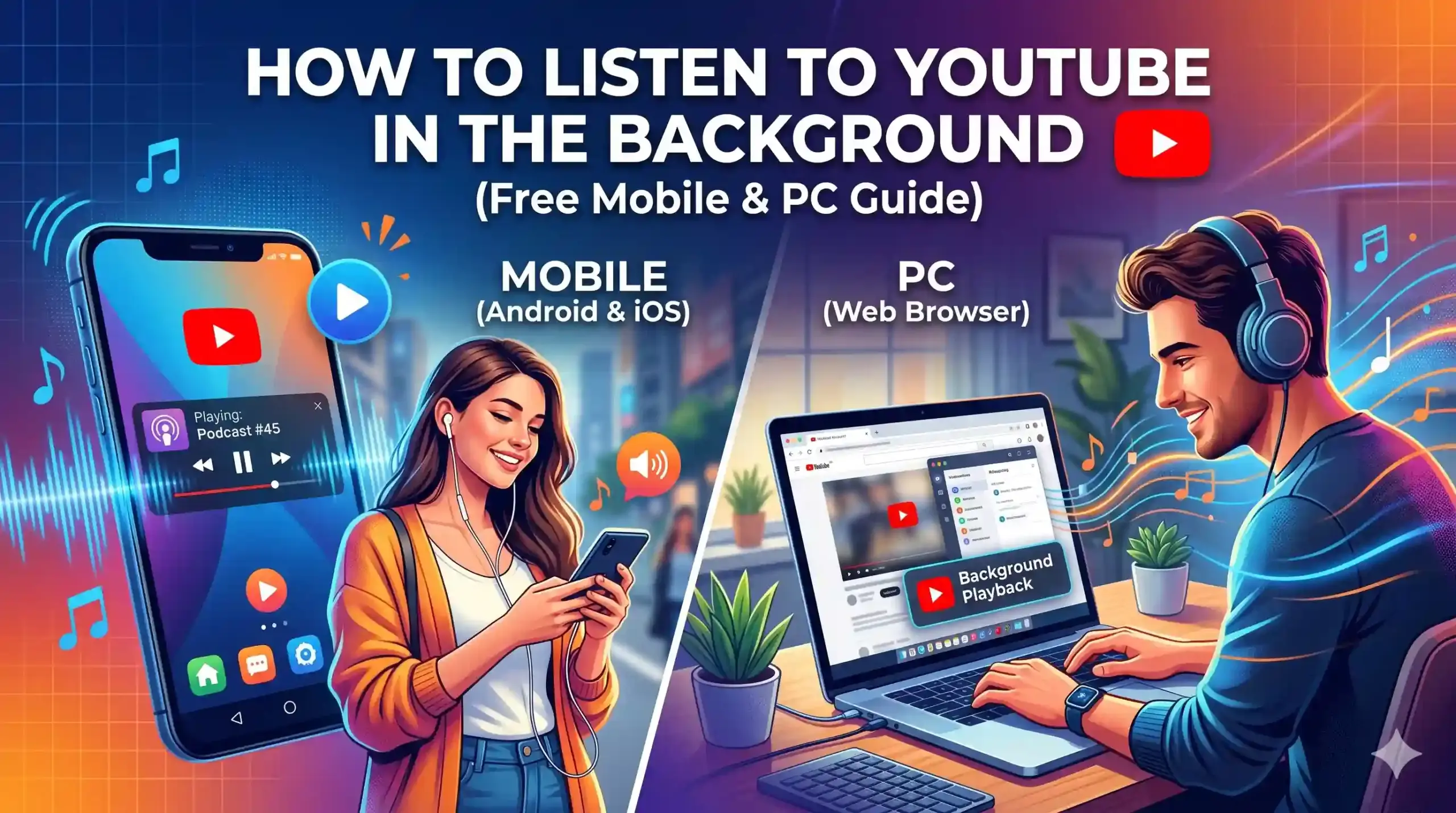
Learn how to listen to YouTube videos in the background on your phone and PC for free! Follow our easy step-by-step guide for uninterrupted playback today.
How to Listen to YouTube in the Background: Step-by-Step on Phone and PC
Listening to YouTube in the background on your smartphone is finally possible without a paid subscription. This highly anticipated update allows your videos to keep playing even when you switch apps, answer messages, or lock your screen-a feature that was previously exclusive to Premium subscribers.
While paid plans like YouTube Premium (R$34.90 per month) and YouTube Premium Lite still offer excellent perks like ad-free viewing and offline downloads, free users can now enjoy uninterrupted audio for a variety of content. On a computer, this functionality has always been available: just open another tab and let the audio play.
Below, we’ll walk you through the exact steps to enjoy background playback on both your mobile device and your computer.
How to Listen to YouTube in the Background on Mobile
Background playback on mobile used to be strictly for paid subscribers, but it has now been expanded for free users. You can now listen to standard video formats-like podcasts, interviews, and vlogs-while multitasking.
(Note: Official music content and YouTube Shorts are not included in this free feature.)
Here is how to get it working:
-
Open the YouTube App: Launch the app on your smartphone and start playing a supported video (remember to avoid official music tracks or Shorts).
-
Exit or Lock: Simply close the app by swiping to your home screen, switch to another app, or lock your phone’s screen.
-
Keep Listening: The audio will seamlessly continue playing in the background!
How to Listen to YouTube in the Background on PC
On a desktop or laptop, the process is incredibly simple and requires no special subscriptions. You can easily listen to music, podcasts, or lectures while working in other tabs or running different software.
Here is how to do it:
-
Open your Browser: Launch your preferred web browser and navigate to YouTube.
-
Play your Video: Find the video or playlist you want to listen to and hit play.
-
Multitask: Open a new browser tab or minimize the browser window entirely to use a different desktop application.
-
Enjoy Uninterrupted Audio: The sound will continue playing without any issues.
Pro-tip: You can also use split-screen mode on your PC to keep a small window of the YouTube video visible while you work in another app side-by-side.
Is it Still Worth Subscribing to a Paid Plan?
With the release of free background playback, the main advantage that used to justify a YouTube subscription has lost a bit of its weight-especially for users who only wanted to listen to podcasts while scrolling through social media or with their screen locked.
However, paid plans still hold significant value depending on your daily habits:
-
YouTube Premium Lite: This remains a great, budget-friendly alternative for those looking to reduce interruptions. It removes ads from most standard videos (like vlogs and podcasts), though it still does not cover musical content or Shorts.
-
YouTube Premium (Full Plan): The complete Premium package offers a much more robust experience. It includes 100% ad-free browsing across the entire platform, the ability to download videos for offline viewing, and full access to the YouTube Music app.
In practice, the decision to upgrade is no longer just about background playback. It comes down to how much you want to eliminate ads and whether you want to integrate YouTube Music into your everyday routine. If YouTube is your primary hub for entertainment and music, the Premium plan is still a fantastic investment.